
本文記錄我的 VS Code 基本設定。
Version
VS Code 1.125.1
VS Code
$ brew install --cask visual-studio-code
- 使用 Homebrew 安裝 VS Code
User Setting
settings.json
{
  // Window
  "window.commandCenter": false,
  "window.zoomLevel": 1.6,

  // Workbench
  "workbench.activityBar.location": "hidden",
  "workbench.browser.showInTitleBar": false,
  "workbench.colorTheme": "Dark Modern",
  "workbench.editor.editorActionsLocation": "hidden",
  "workbench.editor.labelFormat": "short",
  "workbench.editor.showTabs": "none",
  "workbench.editor.untitled.labelFormat": "name",
  "workbench.layoutControl.enabled": false,
  "workbench.secondarySideBar.defaultVisibility": "hidden",
  "workbench.sideBar.location": "right",
  "workbench.statusBar.visible": false,
  "workbench.tree.enableStickyScroll": false,

  // Editor
  "editor.fontSize": 15,
  "editor.fontWeight": "500",
  "editor.fontFamily": "Fira Code",
  "editor.fontLigatures": true,
  "editor.lineHeight": 1.8,
  "editor.tabSize": 2,
  "editor.minimap.enabled": true,
  "editor.stickyScroll.enabled": false,
  "editor.renderWhitespace": "all",
  "editor.renderControlCharacters": true,
  "editor.scrollbar.horizontal": "hidden",
  "editor.scrollbar.vertical": "hidden",
  "editor.parameterHints.enabled": false,
  "editor.accessibilitySupport": "off",
  "editor.tabCompletion": "on",
  "editor.acceptSuggestionOnEnter": "off",
  "editor.linkedEditing": true,
  "editor.cursorBlinking": "smooth",

  // Terminal
  "terminal.integrated.fontFamily": "Menlo",
  "terminal.integrated.fontSize": 15,

  // Git
  "git.openRepositoryInParentFolders": "never",

  // GitHub Copilot
  "github.copilot.chat.agent.autoFix": true,

  // Chat
  "chat.titleBar.openInAgentsWindow.enabled": false,
}
- 完整 VS Code 的 User Setting
位於
~/Library/Application Support/Code/User/settings.json
Window
"window.commandCenter": false,
- 關閉標題列上的
Command Center輸入框
"window.zoomLevel": 1.6
- 調整整體 UI 的縮放層級(不是字體大小),1.6 表示放大 160%。適合高解析螢幕或眼睛疲勞時使用
Workbench
"workbench.activityBar.location": "hidden"
- 隱藏 Activity Bar
"workbench.browser.showInTitleBar": false,
- Integrated Browser 不顯示在 Title Bar
"workbench.colorTheme": "Dark Modern",
- 使用內建的 Dark Modern 主題
"workbench.editor.editorActionsLocation": "hidden",
- 隱藏 Editor Actions
"workbench.editor.labelFormat": "short"
- Tab 上顯示簡短檔名,不含路徑
"workbench.editor.showTabs": "none"
- 隱藏 Tab
"workbench.editor.untitled.labelFormat": "name"
- 對未命名檔案
Untitled只顯示名稱,不顯示路徑或編號
"workbench.layoutControl.enabled": false
- 隱藏 VS Code 右上角 Layout Control
"workbench.secondarySideBar.defaultVisibility": "hidden"
- 藏次 Second Side Bar
"workbench.sideBar.location": "right"
- 將 Primary Side Bar 移至右側
"workbench.statusBar.visible": false
- 隱藏 Status Bar
"workbench.tree.enableStickyScroll": false
- Explorer 不使用 sticky scroll
Editor
"editor.fontSize": 15
- Editor 文字大小設定為 15px
"editor.fontWeight": "500"
- 編輯器字體粗細為 500
"editor.fontFamily": "Fira Code"
- Editor 使用 Fira Code 字型
"editor.fontLigatures": true
- 啟用字型連字
"editor.lineHeight": 1.8
- 設定行高為 1.8 倍字體大小
"editor.tabSize": 2
- Tab 縮排寬度為 2 個空白字元
"editor.minimap.enabled": true
- 顯示 minimap
"editor.stickyScroll.enabled": false
- Editor 不使用 sticky scroll
"editor.renderWhitespace": "all"
- 讓 VS Code 在編輯器中顯示所有空白字元,包含:
- Space:顯示小點
- Tab 字元:顯示箭頭 →
- 行尾多餘空白:顯示小點
- 單詞間的空格:顯示小點
"editor.renderControlCharacters": true
- 設定控制 VS Code 是否在編輯器中顯示 Control Characters:
- NULL (\0)
- 換頁符 (Form Feed \f)
- 換行符號以外的控制碼
- 其他非列印 ASCII 碼
"editor.scrollbar.horizontal": "hidden"
"editor.scrollbar.vertical": "hidden"
- 編輯器不顯示水平與垂直卷軸
"editor.parameterHints.enabled": false
- 關閉函式參數提示
"editor.accessibilitySupport": "off"
- 關閉無障礙輔助功能支援
"editor.tabCompletion": "on"
- 啟用 tab 鍵補全功能
"editor.acceptSuggestionOnEnter": "off"
- 按下 Enter 不會自動接受 autocomplete 提示,避免誤選
"editor.linkedEditing": true,
- 自動同步修改 HTML 前後 tag
"editor.cursorBlinking": "smooth",
- 設定游標為
平滑淡入淡出閃爍
Terminal
"terminal.integrated.fontFamily": "Menlo",
- Terminal 使用 Menlo 字型
"terminal.integrated.fontSize": 15,
- Terminal 文字大小設定為 15px
Git
"git.openRepositoryInParentFolders": "never"
- 不會自動搜尋並打開上層資料夾中的 Git repository
這可避免誤開大型 monorepo
GitHub Copilot
"github.copilot.chat.agent.autoFix": true,
- GitHub Copilot 在 Agent 模式下自動修護
Chat
"chat.titleBar.openInAgentsWindow.enabled": false,
- Title Bar 不顯示 Open In Agents Window
Keyboard Shortcuts
keybinds.json
[
  {
    "key": "cmd+shift+b",
    "command": "-workbench.action.tasks.build",
  },
  {
    "key": "cmd+shift+b",
    "command": "simpleBrowser.show",
  },
]
- 完整 VS Code 的 User Keyboard Shortcuts
位於
~/Library/Application Support/Code/User/keybindings.json
{
  "key": "cmd+shift+b",
  "command": "-workbench.action.tasks.build",
},
- 將原本 ⌘ ⇧ B 的定義刪除
{
  "key": "cmd+shift+b",
  "command": "simpleBrowser.show",
},
- 將原本 ⌘ ⇧ B 的定義到 VS Code 內建 Browser
Minimal VS Code
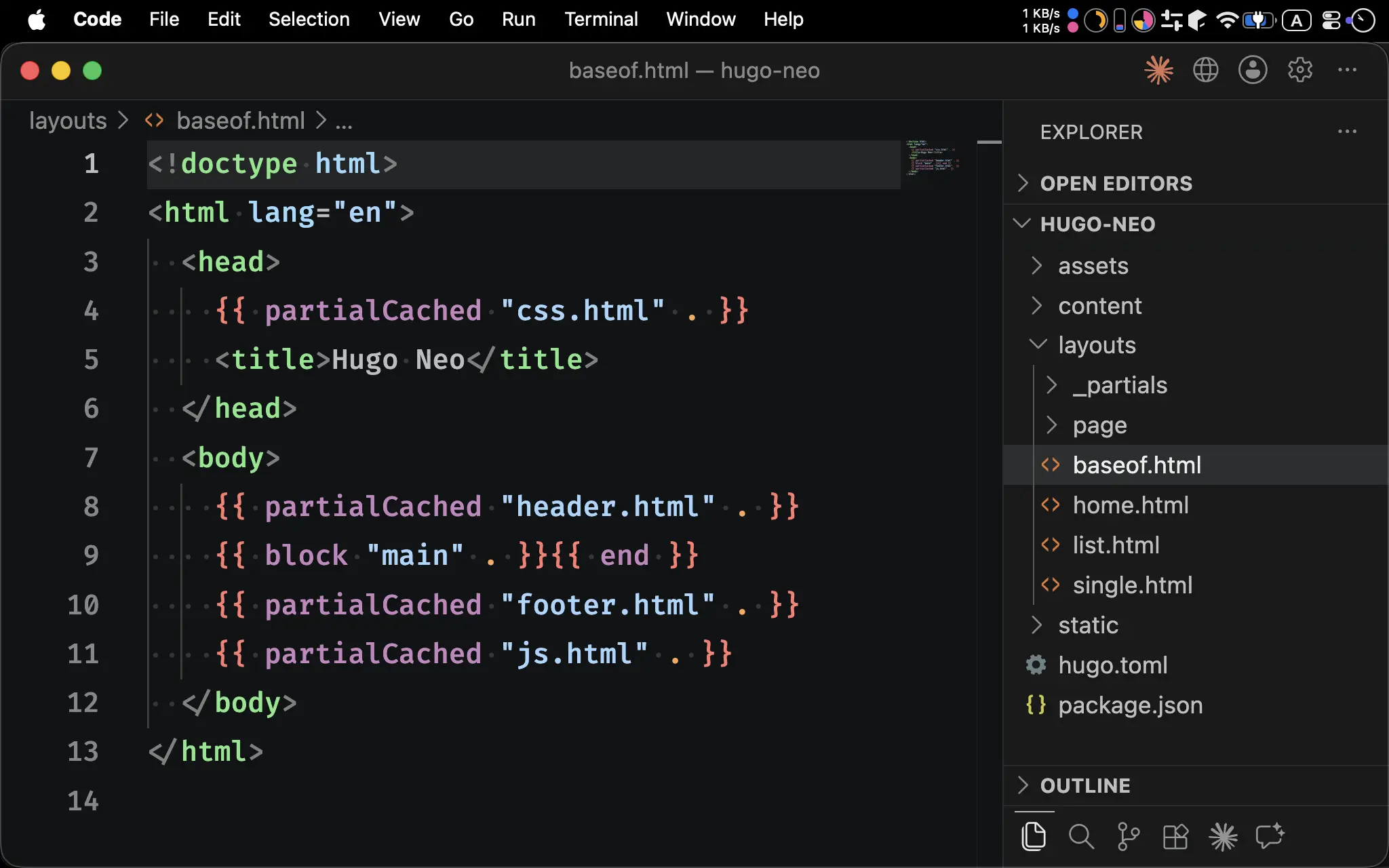
- VS Code 會以極簡風格呈現
Conclusion
- VS Code 可設定的地方非常多,且都可以 JSON 格式保存
- Keyboard Shortcut 需另外設定到
keybindings.json - VS Code 只負責 Coding,只使用 GitHub Copilot 的 Inline 功能,Agent 會直接使用 Claude Code CLI 或 Claude Code Desktop